
Today where going to take a look at customer ratings. This is a way that you can quickly see who are your best customers according to the data that you want to rate upon.
Let’s begin:
- First, we’ll show you where and how to set the settings of the ratings.
- Go to “File” menu then “Preferences”, click “Company”.

- Find “Work Order” on the lower left side of the screen, then click “Ratings & Trends”.

- On the “show ratings for customer” section, click on the “Profit” choose whether it’s “Profit or Total Sales” you want to base your ratings. Then on the days it’s the time period of the ratings.

- Then click “Save”.

- Go to “File” menu then “Preferences”, click “Company”.
- After you setup the ratings, Go to “Customer List”.

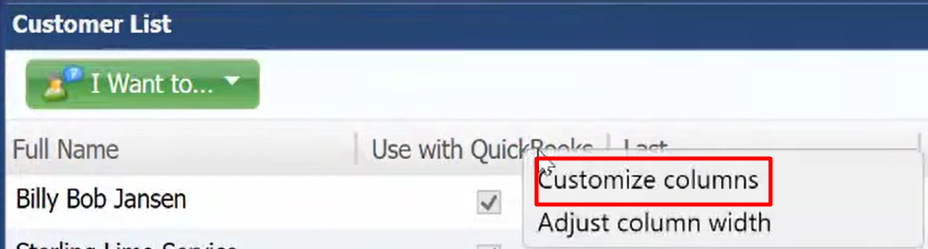
- Right click on any of the column, then click “Customize columns”. Find and click “Rating”.
- We now have a Rating column on our Customer List.
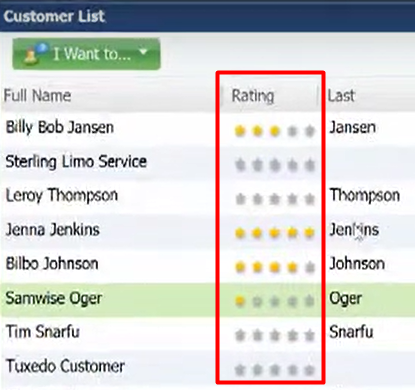
- 5 stars is 81% – 100% customer rating.
- 4 stars is 61% – 80% customer rating.
- 3 stars is 41% – 60% customer rating.
- 2 stars is 21% – 40% customer rating.
- 1 star is 1% – 20% customer rating.
You can also check the Customer ratings in making a sale.
- Go to “Make a Sale”, search the name of a customer then click “More info”.

- On the “Statistics” section you’ll see the ratings of the customer you searched.
