
Today we are going to talk about how to make a return in QuickBooks point of sale using the customer’s receipt.
Let’s begin:
On the receipt your customer Leroy Thompson purchased 5 beeswax candles and let’s say he wants to return 2 of them back.
- Go to “Make a Sale”.
- On the blue buttons select “Accept Return”.
- Scan the Barcode on the receipt or you could enter the receipt information here.

- After you scan Leroy’s receipt using Barcode scanner, in Return quantity type in the quantity he wants to return. (Leroy’s wants to return 2 Bees Wax Candle)
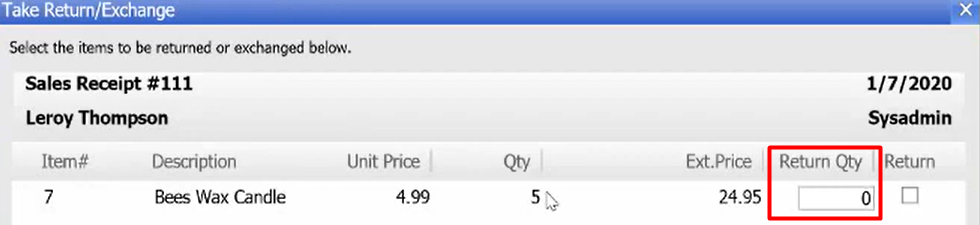
- Select “Add selected items”.
- On the lower left corner select “Cash” then select “Save”.
- Select “Save and Print”.
- Change screen will appear, it will tell you how much Leroy’s change is. Then select “Ok”.
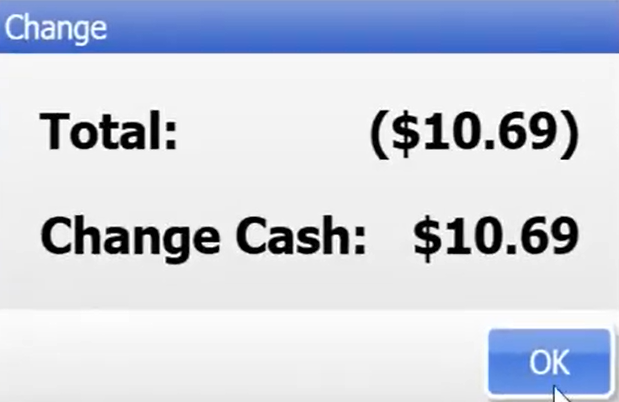
- There you have it, we just made a return using a receipt from a customer.
We need QB to send SMS to customer when transaction occurs on his account and balance