
Today we will talk about when a customer walks into your store with their item they want to return but they’ve thrown away their receipt.
Let’s begin:
- From you QuickBooks point-of-sale screen click “Customer List”.

- On your Customer List screen find the name of your customer then click “Show Details” on the right side of the screen.

- Go to your “History” section. Look for the receipt that matches the item your customer wants to return.

- You’ll see here the items your customer bought on your store.
- The one that I box is the document number.
- When you already find the receipt for the item click “Accept Return” button on the left screen.

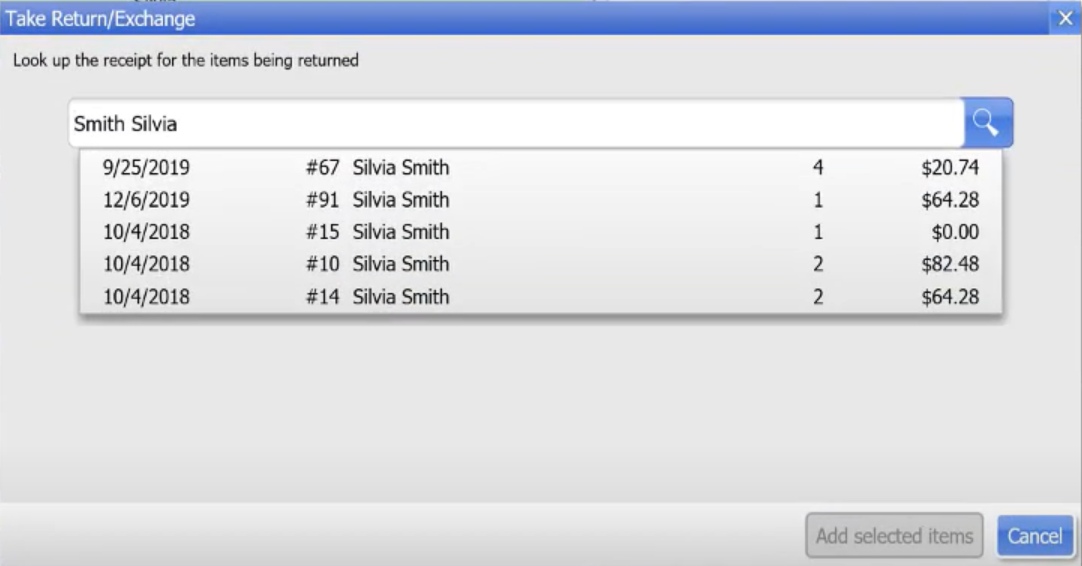
- “Take Return/Exchange” screen will appear. Look for the document number for the item then click it.
- Type here the number of quantities your customer is returning.
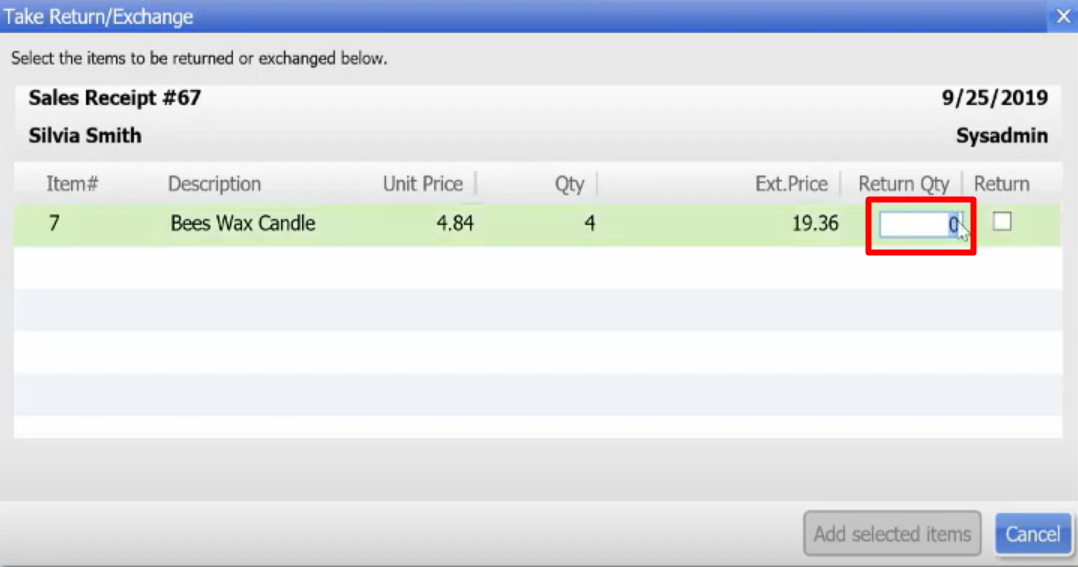
- Then click “Add Selected items”.

- From your “Return Receipt” screen click “Save” and “Print”.

- Now we have the Return Receipt for the customers item.
