
Today we will learn about printing inventory tags where you’re ordering from alternative vendors.
Let’s begin:
For example, your customer is ordering 8Gb Computer Memory.
- Just a little bit of information
- Go to “Item List” click on “8Gb Computer Memory” item then click “inventory Item detail”.
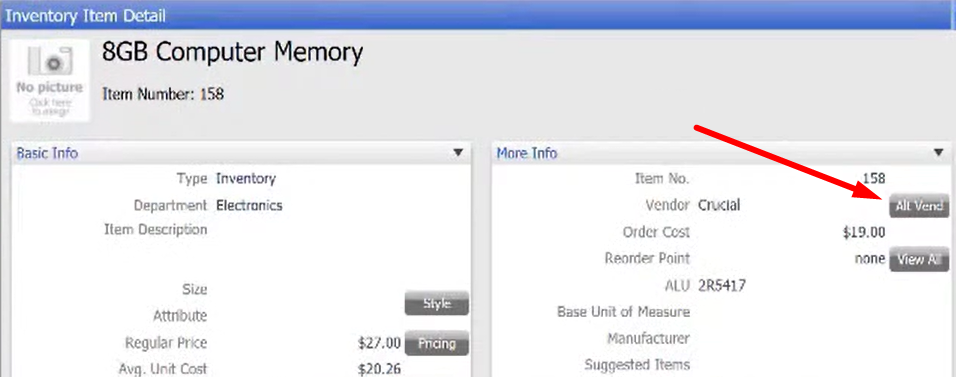
- Click “Alternate Vendor”.
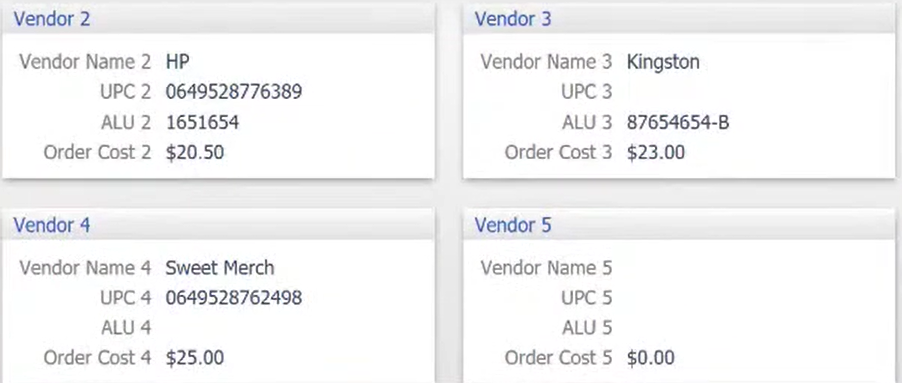
- It will show you the different vendors who are selling 8GB Computer memory.
- You’ll see here the vendors name, item code, and the order cost of the item.
- NOTE: You can’t just go to “I want to” menu and click “Print Tags” because it will automatically print the main vendor which is for instance you didn’t choose that as your vendor, and also because there are some vendors in Multi-vendor item that put specific information on their price tags.
- Go to “Item List” click on “8Gb Computer Memory” item then click “inventory Item detail”.
- Now let’s begin, from you QuickBooks point-of-sale screen go to “Receiving Voucher”.

- On your “Voucher” screen search the vendor name and item on “Enter Vendor name” and “Enter item Information”.


- After you search the item and the name of the vendor this will show on the screen.
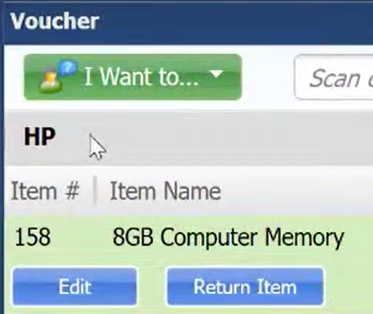
- The customer chooses “HP” as his vendor.
- The Price tag will print base on the settings of the vendor.
- Click “Print Tags” button on the left side of the screen.
