
Today we will talk about how you can process an exchange when a customer comes into your store and they want to bring something back and purchase something else, and you will do it all on one receipt.
Let’s begin:
- On your Homepage, go to “Sales History”.
- Select the receipt where the item your customer will return or you may look for the name of your customer. (for example, John Smith)
- On the blue buttons, select “Accept Return”.

- Type in in “Return Quantity” the quantity of items your customer wants to return. Then select “Add selected items”.
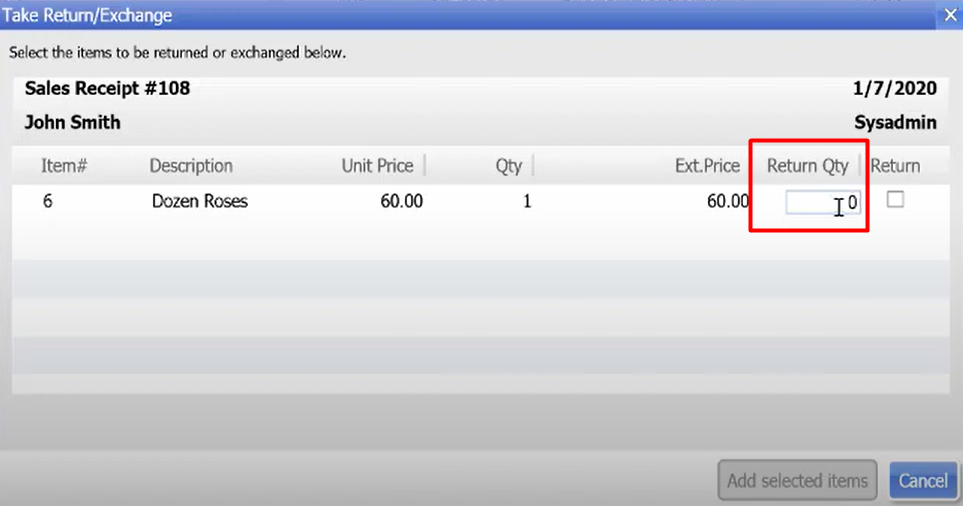
- Your sales receipt for return item is mark all as red and the quantity and exit price is all in negative.

Now if you want to exchange an item for your return item:
- On your “Scan or enter item information” add the item you want to exchange.
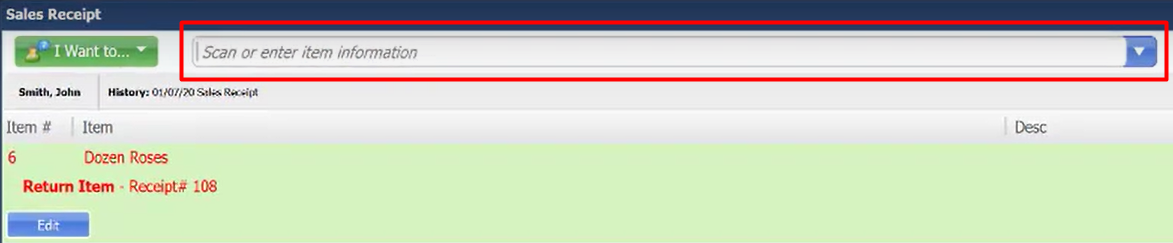
- For example, you choose “Charm necklace” as the item you want to exchange.

- For example, you choose “Charm necklace” as the item you want to exchange.
- Select “Save” or “Save and Print”.
- Change screen will appear to show you the Total and your Change Cash. Select “Ok”.
