
Today we will show you how to properly complete a layaway.
Let’s begin:
- On your “Order List”, Click “View” in Open lawyers.

- We will take “Sammy Davis” as our example.
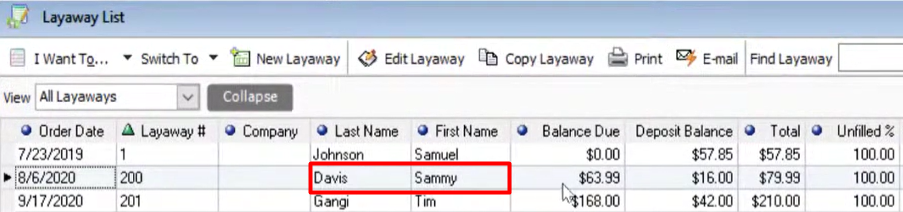
- Click on any of the header, then click “Customize Columns”.

- Add “Status” on the chosen columns, then click “Save”.

- Click on any of the header, then click “Customize Columns”.
- On the Status column you’ll see that Sammy Davis is labeled as “Customer Contacted” which means his product is now available and ready to pick up.
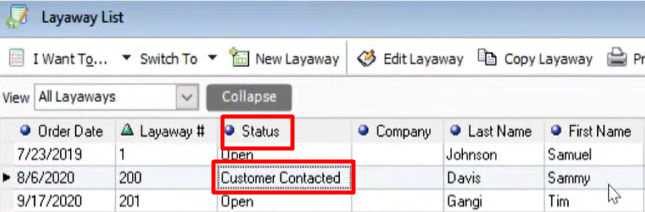
- Double-click Sammy Davis. Edit Layaway screen will appear.

- Double-click Sammy Davis. Edit Layaway screen will appear.
Here’s how to properly complete a Layaways.
- Go to “I want to…” menu then click “Sell Items”.

- Click “Select All” for multiple items to bring all items to the sale.
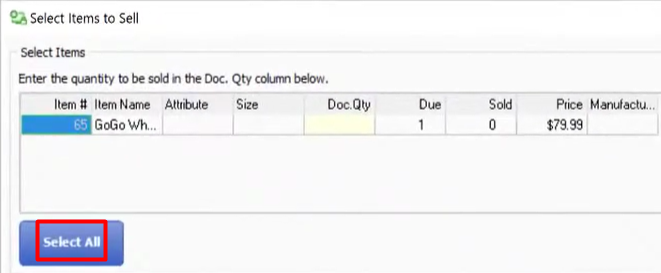
- This is the after look when you click Select all.

- This is the after look when you click Select all.
- Click “Continue”.
- You will go directly to make a sale receipt screen.

- This is where the actual sale happens.
- You can see on the lower right corner of the screen that the deposit used it’s going to pull the sixteen dollars that he already deposited into the sale.

- Sammy Davis has a remainder due of 63.99 which is what we’re going to take care of today when he picks it up.
- So, we are going to pay off the remainder with cash. Click “Cash”.

- Click “Save for later”.
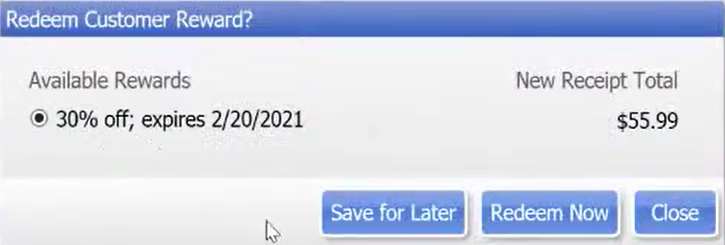
- Then click “Save”.

- Click “Save for later”.
- This is the point at which the customer would get the receipt for the real items and that would be their proof of purchase type receipt. You may have noticed that the deposit receipts might not have all the items on them in your history that’s because that’s just a deposit.