
Today we’re going to cover on how to properly close out your sales orders in QuickBooks Point of Sale. Not properly closing the sales order doesn’t sell the items and realize it as income. It does not take your quantities out and that can be a real issue for your inventory and will also affect your accounting system.
Here’s how:
- Open your work orders on QuickBooks Point of Sale, by clicking on “Order List” then select “Open Sales Orders”.

- Select a sales order that you want to properly close.

- Now in order to close the sales order properly, click on “I want to” menu then select “Sell items”.

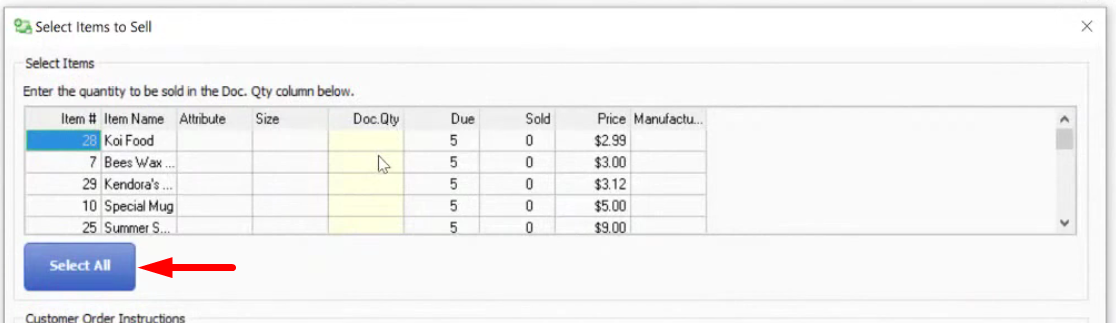
- A window will pop-up asking how many quantities of the items is to be sold, click on “Select All”. This will transfer all the items in the work order to the Make a Sale window. Then click “Continue”.
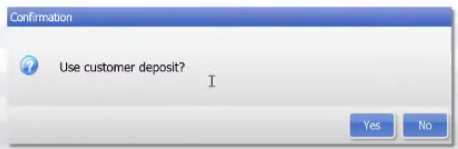
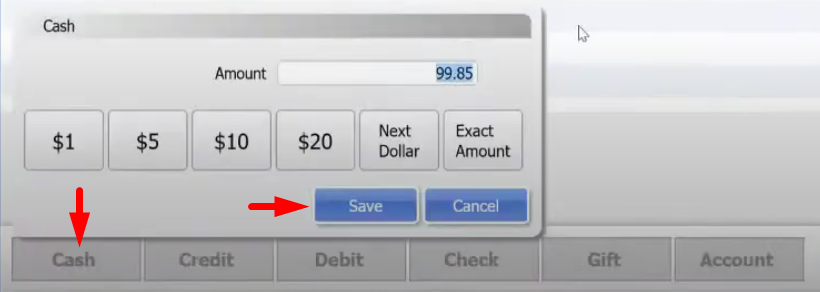
- You can see that the item have been transferred to the Make a Sale window. If the items has been paid through deposit. You will receive a prompt from QuickBooks Point of Sale asking if you want to use the deposit balance. Click on “Yes” to consume the deposit. But if the customer will pay it up front, click on “Cash” on the lower left side of the Make a Sale screen. Then lastly click on “Save and Print” or “Save only”.
- You can now issue a receipt to the customer and this will also deduct the items from the inventory. Check the Sales Order to see if the status has been automatically set to Closed. If yes, that means that it has been properly closed.
