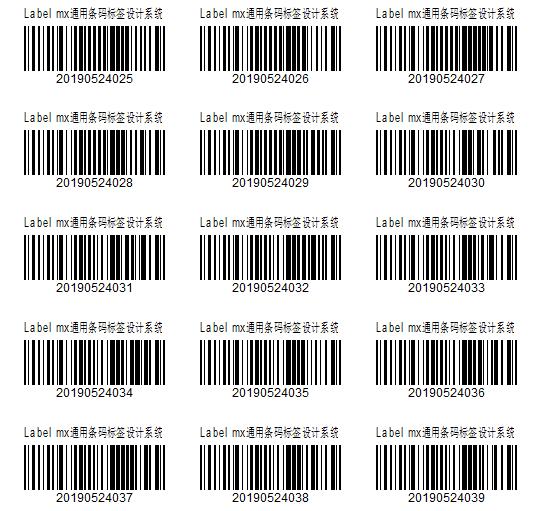
We’re going to learn a method to quickly and easily check out items that may not be easily tagged or barcoded. This is for items that are small and cannot put a price tag, items in a bin that is impractical to put a price tag on each piece. The method that we are going to use is like a Quick Scan Sheet where you can easily scan those items.
Let’s start:
- Go to your “Item List” on the home screen of QuickBooks Point of Sale.

- Select the items that you want to make a Quick Scan Sheet for.

- After selecting all the items, click “I want to” then select “Print Tags”.

- On the Print Settings window, select your regular printer and set the item template to “Avery 5160”. The Avery 5160 is intended to print barcode tags out on a sticker sheet.

- Then print the price tags for the selected items on a piece of paper and laminate the printed paper. This will serve as your Quick Scan sheet, you can scan the item’s price tag on the sheet quickly and easy. Below image is sample of a Quick Scan Sheet.