
Let’s go over the customer order preferences. There are three different types of customer orders, the sales order, the work order and the layaway order. We’re going to tackle all three since they have practically the same preferences and are customer orders.
Here goes:
- Go to “File” menu → then “Preferences” → click on company.
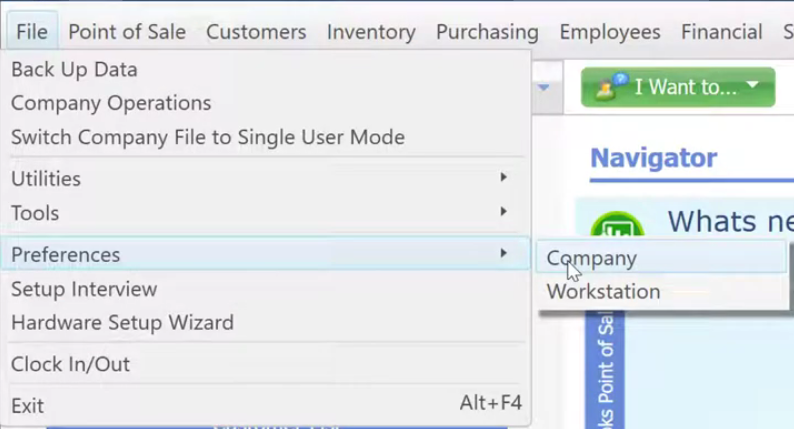
- These 3 types of customer orders have the similar settings.

- Layaways – a purchasing agreement by which a retailer agrees to hold merchandise secured by a deposit until the price is paid in full by the customer.
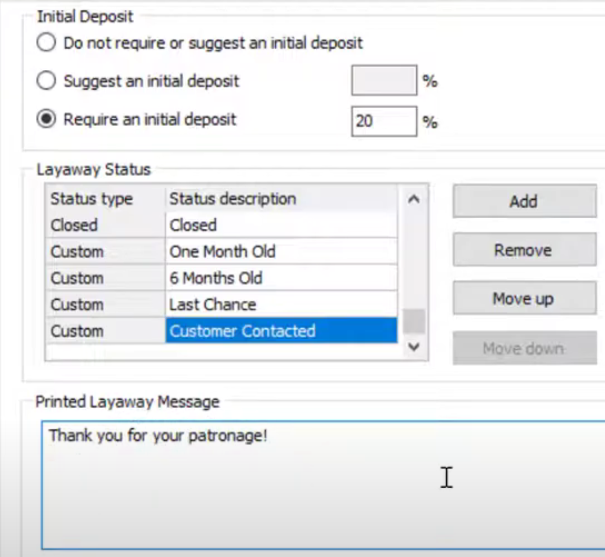
- Initial Deposit – For a layaway order, it is better to require an initial deposit. You can input the deposit percentage.
- Layaway Status – You can add different statuses for your layaway orders that cater to your services or products. Also you can remove and arrange the status type.
- Printed Layaway Message – This is where you can leave messages regarding with the layaways. It can be about conditions with the deposits or the pick-up date.
- Sales Orders – a document prepared by a seller and issued to a customer confirming the sale of goods or services involved in a given transaction.

- Initial Deposit – the same as a layaway order, it is better to require an initial deposit for your sales order. You can input the deposit percentage.
- Sales Order Status – You can add different statuses for your sales orders that cater to your services or products. Also you can remove and arrange the status type.
- Printed Sales Order Message – This is where you can leave messages regarding with the sales order. It can be about conditions with the deposits or the pick-up date.
- Work Orders – is usually a task or a job for a customer that can be scheduled or assigned to someone.
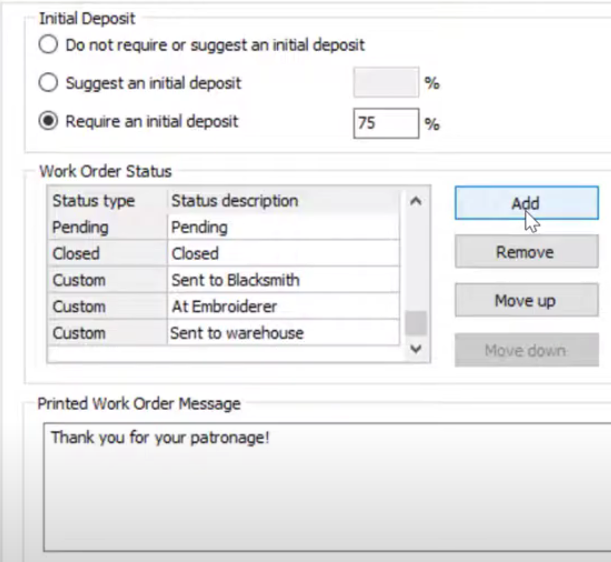
- Initial Deposit – the same as the other two, it is better to require an initial deposit for your work order. You can input the deposit percentage.
- Work Order Status – You can add different statuses for your work orders that cater to your services or products. Also you can remove and arrange the status type. To keep the customer updated on what is the status of the work order.
- Printed Work Order Message – This is where you can leave messages regarding with the work order. It can be about conditions with the process of the work and also the pick-up date.
- Layaways – a purchasing agreement by which a retailer agrees to hold merchandise secured by a deposit until the price is paid in full by the customer.
- For the Document numbering, all three types of customer order have the same set up. Just select a numbering method and the starting number for each customer order. It will be auto-generated once making either one of the customer orders.
*Note: Make sure to use different starting number for each customer order*
