
Today we’re going to tackle on how to assign one of your customers as being Tax Exempt and also walkthrough a sale that is tax exempt.
Let’s start with:
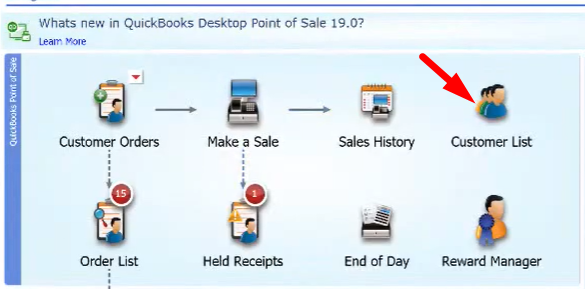
- Clicking on “Customers List”
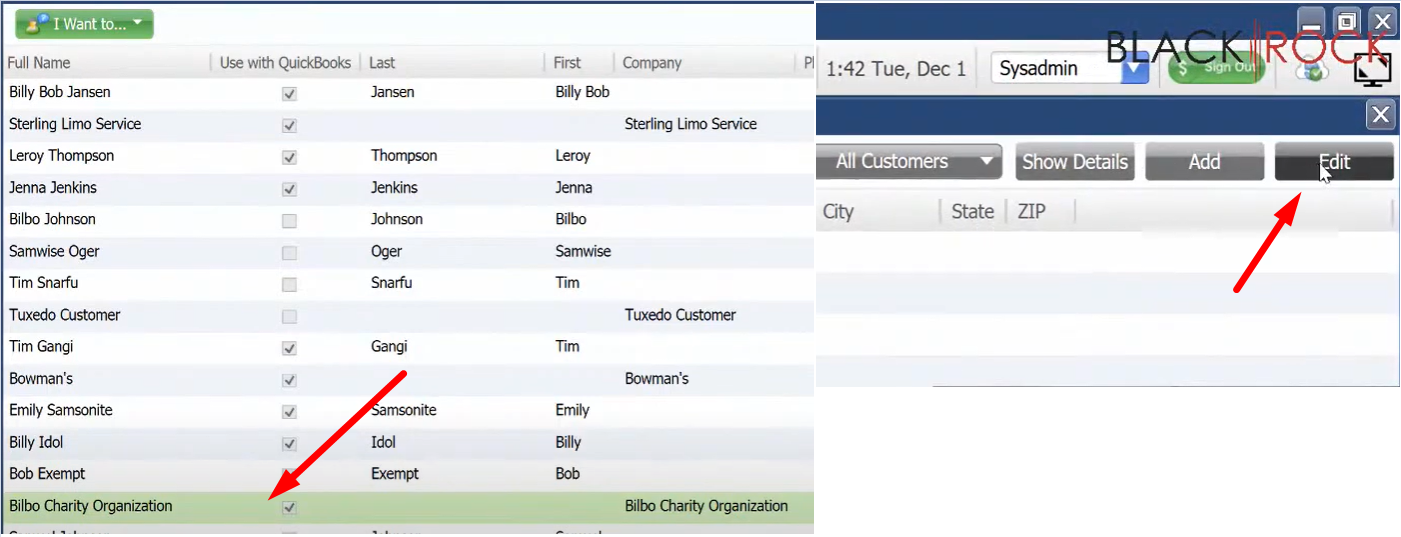
- Then select the customer that you wish to set as a Tax Exempt Customer. Click “Edit”.
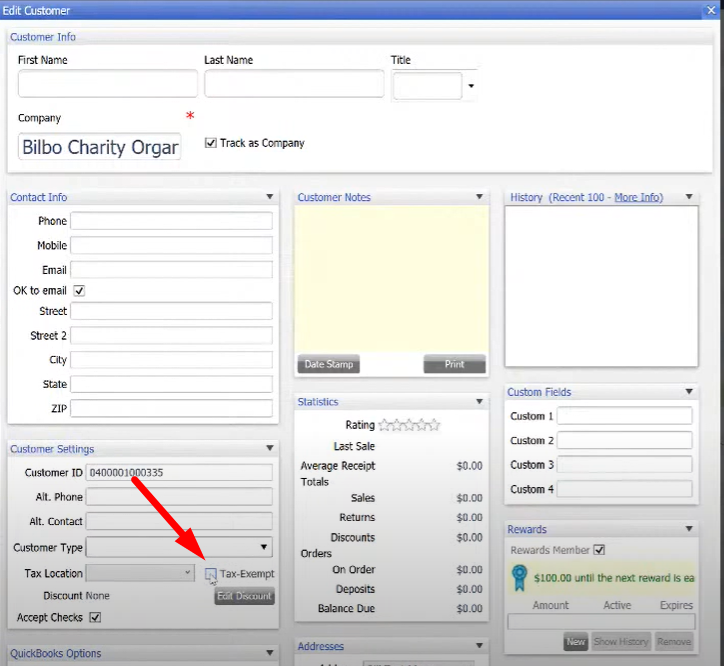
- On the Customer Profile Window, check the “Tax-Exempt” checkbox. Notice that the “Tax Location” box disappear. Then click “Save”
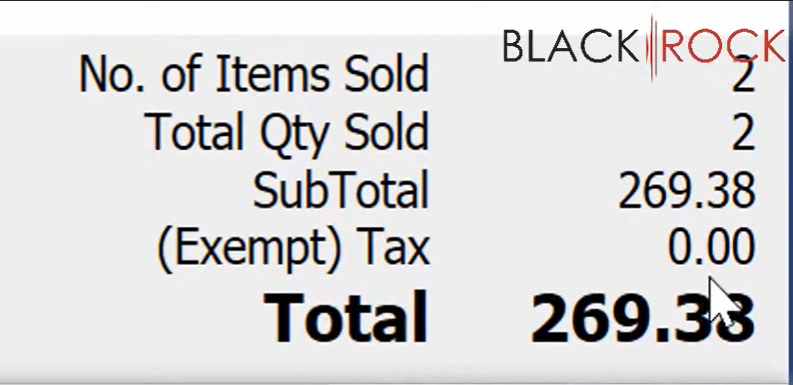
- When making a sale with a Tax Exempt Customer. Notice that the sale will no longer charge Tax.
 Tip: It’s a good idea to include in your company profile to put their Tax Exemption Certification Number.