
QuickBooks POS Suggested Addons & Upsells
A short while ago, I had a customer looking into QuickBooks Point of Sale to see if it would fit their needs. One thing they had previously seen in another POS system was the ability to look at the screen, while ringing someone up, and according to the items that were being purchased, the Point of Sale system would suggest other items the customer might like. Ring up a pack of smokes, the POS would suggest that you ask the customer if they needed a lighter. Ring up a fine merlot wine, get suggestions on the best cheese to go with the taste. The ideas for cross-sells and upsells are literally endless. So, I got to thinking of the functionality in QuickBooks POS, and actually came up with a pretty decent workaround that does the exact same thing.
Now, I will unveil how to set it up:
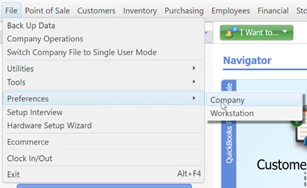
- Go on the File Menu to Preferences and Company.
- Under the General section, go to My Field Labels
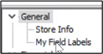
- Turn on one of the Inventory custom fields with a check mark and call it Suggested Items.

- Now, you will go and edit or create your items.
On each item, you will see a new field called Suggested Items.
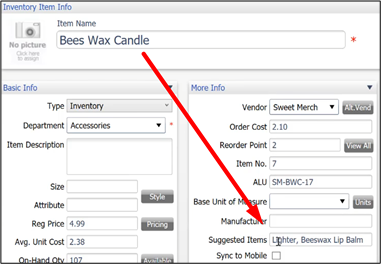 Fill it in with other items in your store that would pair nicely with the product being purchased.
 - Now over to the Make a Sale screen. Right-click on the header bar, and choose customize columns.

- Find Suggested Items and select it.
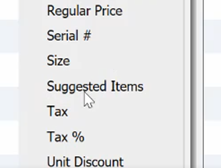
- You can click and drag the Suggested Items heading across the header bar to an appropriate position where you would be able to see it while making a sale.

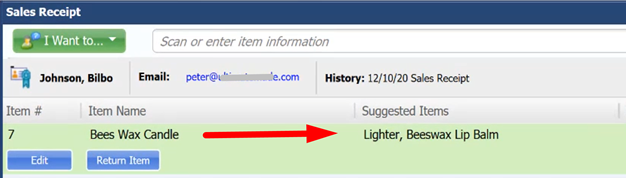
- Now, while you are checking out your customer, you will see Suggested Items along with any product they are purchasing. Train your employees to make sure to suggest items, and watch your ticket totals skyrocket!
I have tried multiple times what you suggested and it doesn’t work. I’m using POS 19. Any ideas what’s going on….or wrong in this case?