
Today we are going to talk about updating prices from your receiving voucher.
Let’s begin:
- Go to “Receiving Vouchers”.
- On your Receiving voucher we’re going to receive some items from your vendor. (For example, your Vendor is Sweet Merch, and your items you will receive from sweet merch are 5 pcs info security shirt, 7 pcs charm necklace, and 10 pcs fuzzy nightgown)

- Change your “Voucher Cost” base it on the prices you have on your receipt from your vendor.

- Change your “Voucher Cost” base it on the prices you have on your receipt from your vendor.
- Select “Save Only”.
- Confirmation screen will appear. This will remind you to review and update your prices before saving the voucher. Select “Yes”.
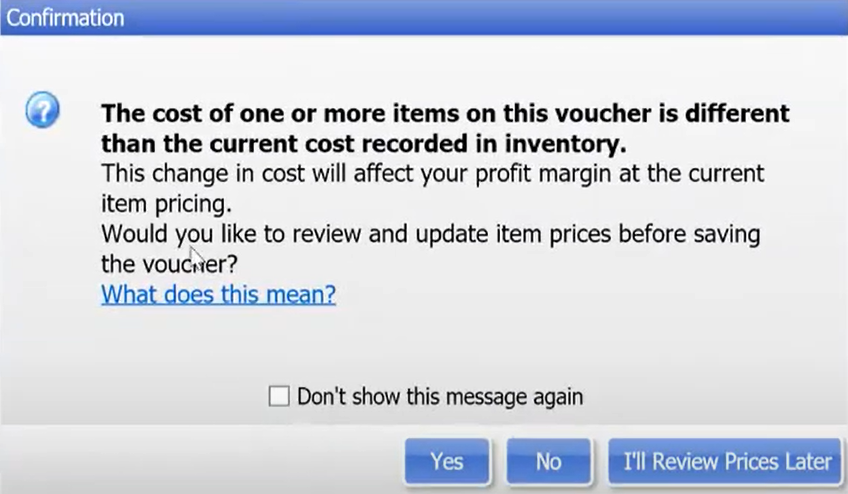
- After you select Yes you will be back at your Voucher screen.

- First, add Regular price on your columns. Right click your column, select “Customize Column” then find “Regular Price”.

- Second, you might want to add Department, Margin, and Markup on your details to help you in updating your prices. Right click your column, select “Customize details” then add “Department”, “Margin”, and “Markup”.
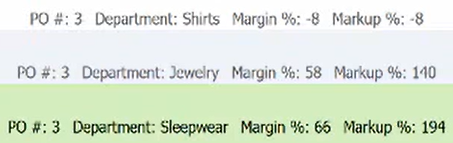
- Now, you can already update your Regular Price to what you have calculated base on the details of your items. Double click on the Regular price and type in the New price you calculated for your item.
- First, add Regular price on your columns. Right click your column, select “Customize Column” then find “Regular Price”.
- Select “Save”. You have now updated your price from your Receiving Voucher.