
Today we are going to cover how you can look at the different documents inside QuickBooks Point of sale.
Here’s how:
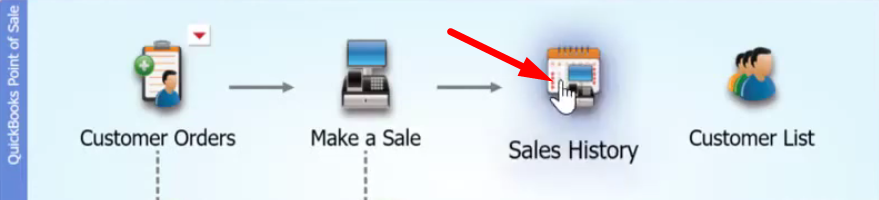
- On the main screen, click on the “Sales History” icon.
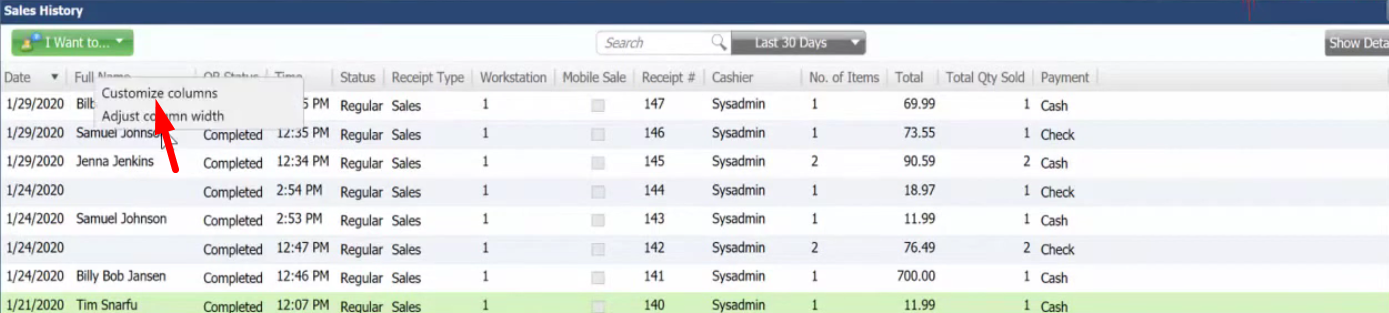
- Add the “QB Status” column on the list by right clicking on the columns and select “Customize columns”.
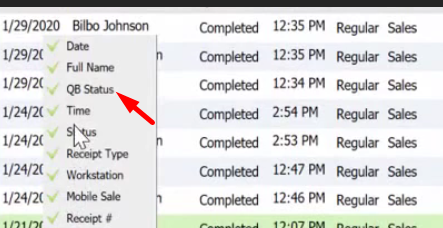
- Select on “QB Status”. The QB Status simply let us know whether a receipt has been sent over or not, as well as a receiving voucher.
- Highlight on the transaction that you are interested in to see, and click on the “I Want to…” menu and select “Show Financial Detail”.

- The screen will show the Financial History of the transaction, there you will see when was it successfully sent to QuickBooks, it also tells you when exactly the financial exchanged happened and that the details is saved into your company file.
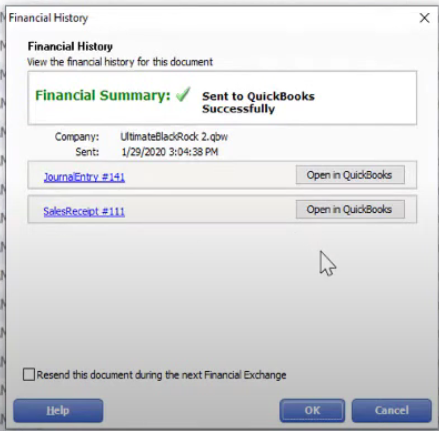
- Beside the Sales Receipt, click on the “Open in QuickBooks”.
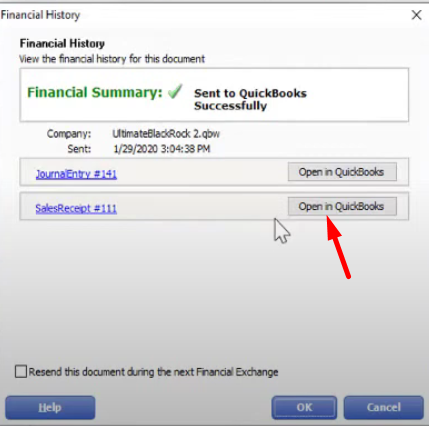
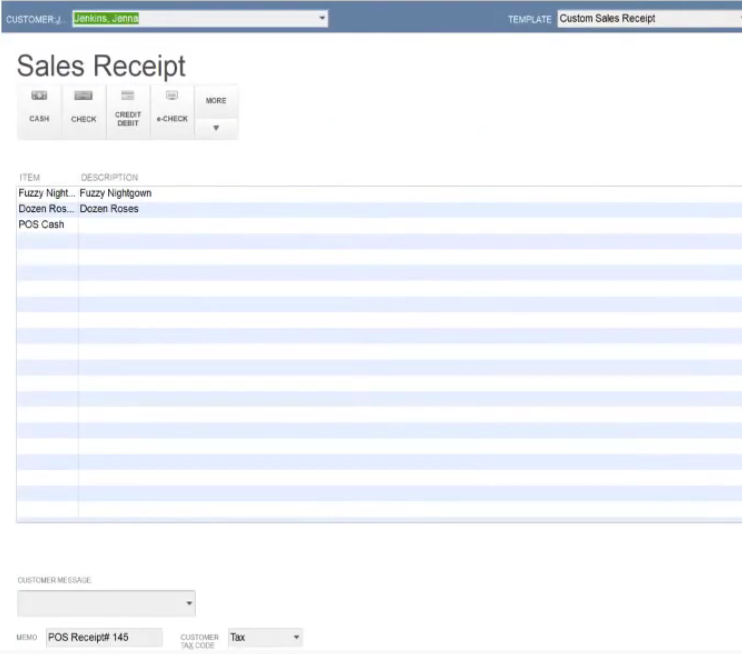
- It will automatically open up the sales receipt and you will see in the memo field the POS receipt number and what the customer has purchased.
You can also do the same thing on the Receiving History to check the details of the items.