
Today we’re going to learn how to print shelf tags.
Here’s how:
- Recommended: Buy our QuickBooks Point of Sale tag printer which is the Zebra ZD 410.
First, with your tag printer put in the roll of shelf tags and make sure that you back it up and stick one of the tag out of the front and close the top down.
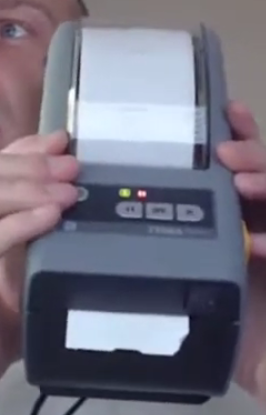
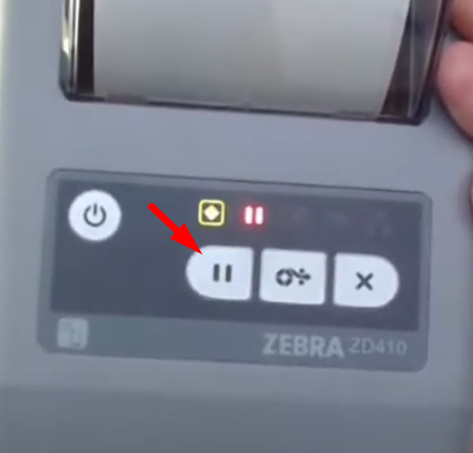
- Press on the pause button to ready the tag printer for printing.
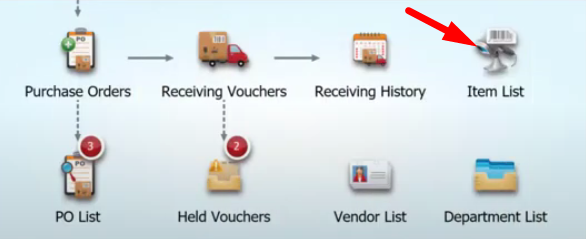
- Now on the QuickBooks Point of Sale main screen, click on the “Item List” icon.
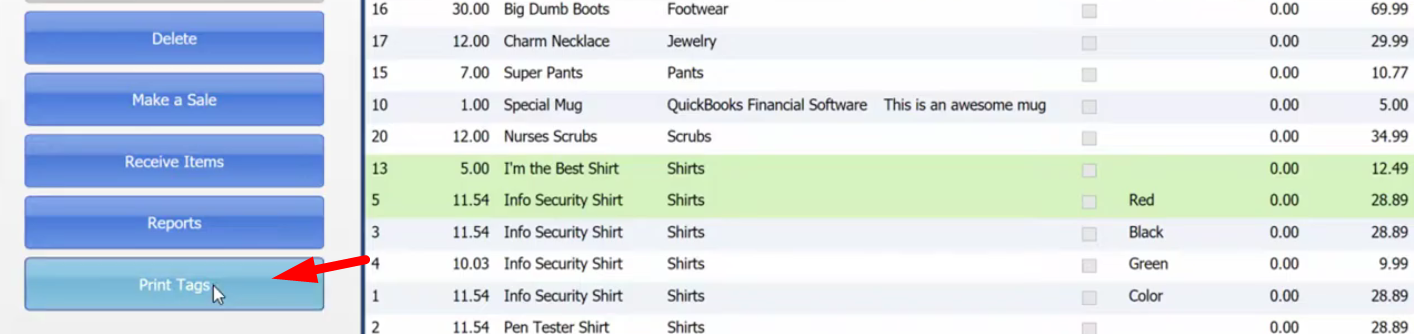
- Select on the items that you want to print a shelf tag for and on the left column click on “Print Tags”.
- Now on your Print Dialogue, on the Item template make sure to change it to “Intuit Hang Tag”. Once you’ve have set all the needed details, click on “Print”.
