
Today we are going to show you how you can verify if a document were sent to QuickBooks accounting.
Let’s begin:
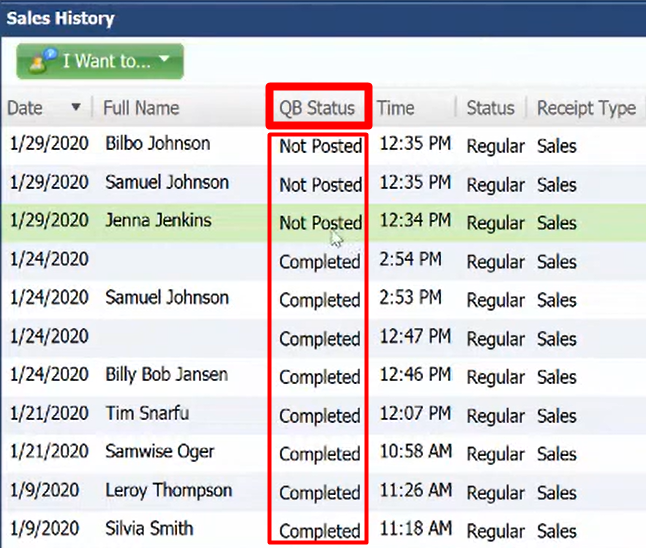
- On you Home screen, go to “Sales History”.
- On your Sales history screen, add “QB status” on your column.
- You will see in QB status column that some of your documents are Completed and some are Not yet Posted on your QuickBooks accounting.
Let’s go to Receiving History
- On your Receiving history screen, you will see that you have 2 Unbilled Purchase in QB status column.

- You will see on the Payment column that in order for these two vendors to be Completed in QuickBooks Account they need to set their Billing Information.
- Go to “I want to” menu, then select “Enter Billing Info”.
- Enter the “Invoice No.”. Invoice number is some sort of reference number or it could be the packing number. Select “Ok” when you’re done.
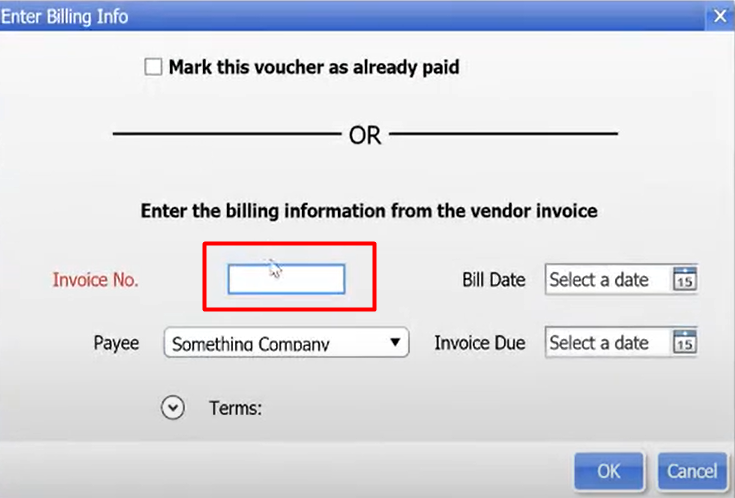
- Now you have your invoice number for “Something Company” vendor. The next time we make a financial exchange with this vendor it will already sends that over as an open bill in QuickBooks Accounting.

Now, go back to “Sales History”.
- On your “Financial” menu, select “Update QuickBooks Desktop”.
- Wait until the update is done.
- After you update, you will notice that the 3 “Not Posted” remains the same, because this just doesn’t automatically update their QB status.
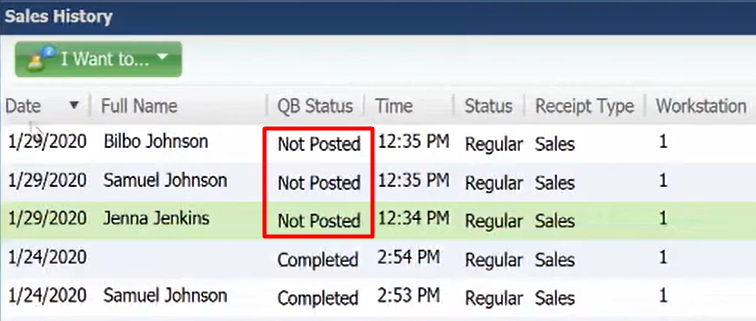
- We can still check if it was really sent to QuickBooks accounting. Choose one of the 3 Not Posted status, go to “I want to” menu then select “Show Financial Detail”.
- You have now successfully sent the financial summary to QuickBooks accounting.
