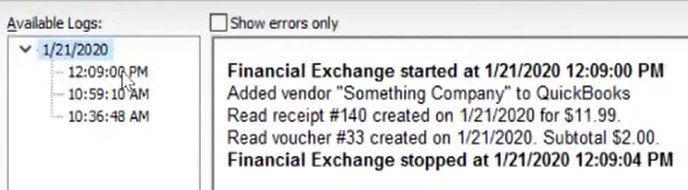
Today we will learn on how to view financial activity log on our QuickBooks point-of-sale.
Let’s begin:
- Let’s make an example.
- First, go to “Make a Sale” create a customer then make a receipt then save it.
- From your “Vendor List” create a vendor then save it.
- Make a “Receiving voucher”.
- Then go to “Clock in/out” clock in and out as an employee.
- After you make a customer, receipt, vendor, receiving voucher, clock in/out then go to “Financial” menu and click “Update QuickBooks Desktop”.

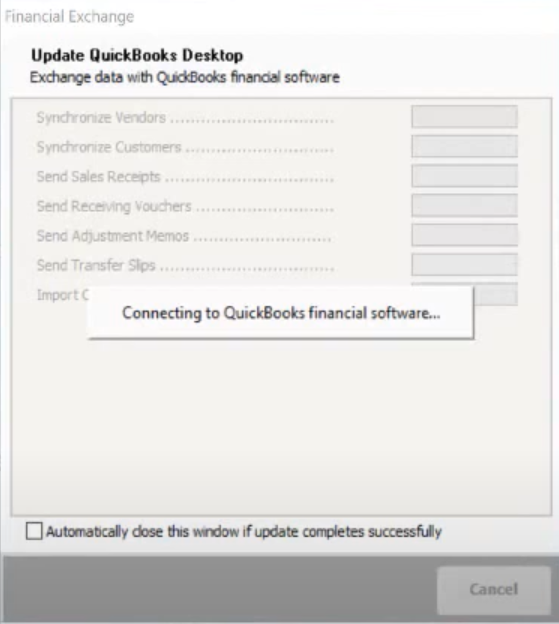
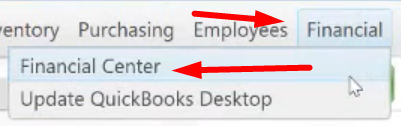
- When the update is finish. Go to “Financial” then click “Financial Center”.
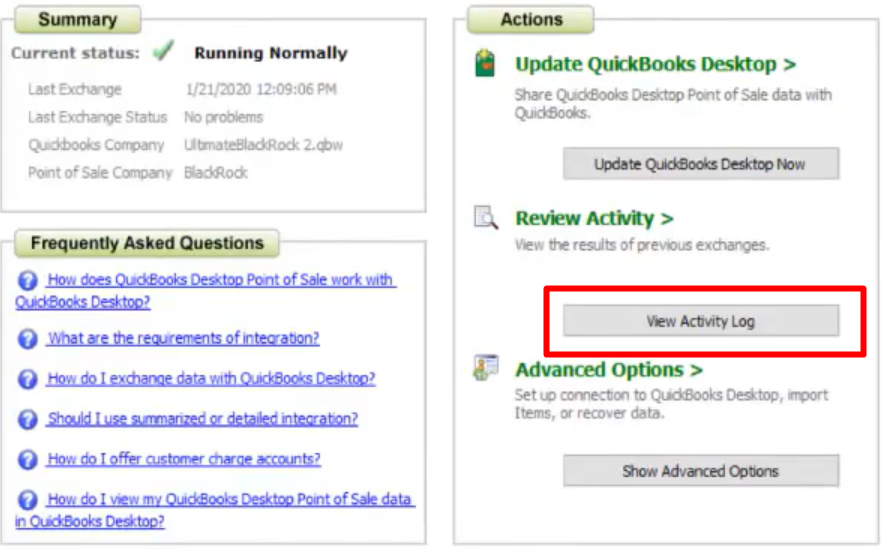
- From your “Financial Center” screen click “View Activity Log”.
- On your “View Activity Log” screen you’ll see the Vendor, Receipt, and Voucher you created on this date and time.